Video Time Machine

Free πŸ“Ή Teacher Tool ● Live Now

Video Delay Webcam Tool πŸŽ₯

Give students instant visual feedback on skills using a simple video delay tool built for PE teachers. Set the delay time, record live through your webcam, and let students watch what they looked like a few seconds later so they can reflect, adjust, and improve.

⏱ Adjustable delay timer β€” set the delay to match the skill, station, or teaching setup so students can perform first, then immediately watch themselves.
πŸ“· Live webcam feedback β€” use any device with a camera to capture movement in real time right from the browser.
πŸ‘€ See the skill right after performing β€” students can compare what they felt with what actually happened during a throw, jump, strike, roll, or balance.
🧠 Better self-assessment β€” supports reflection, peer feedback, and skill correction without needing constant teacher replay or recording.
🏐 Works with any PE skill β€” great for striking, catching, throwing, kicking, gymnastics, dance, and fitness movements.
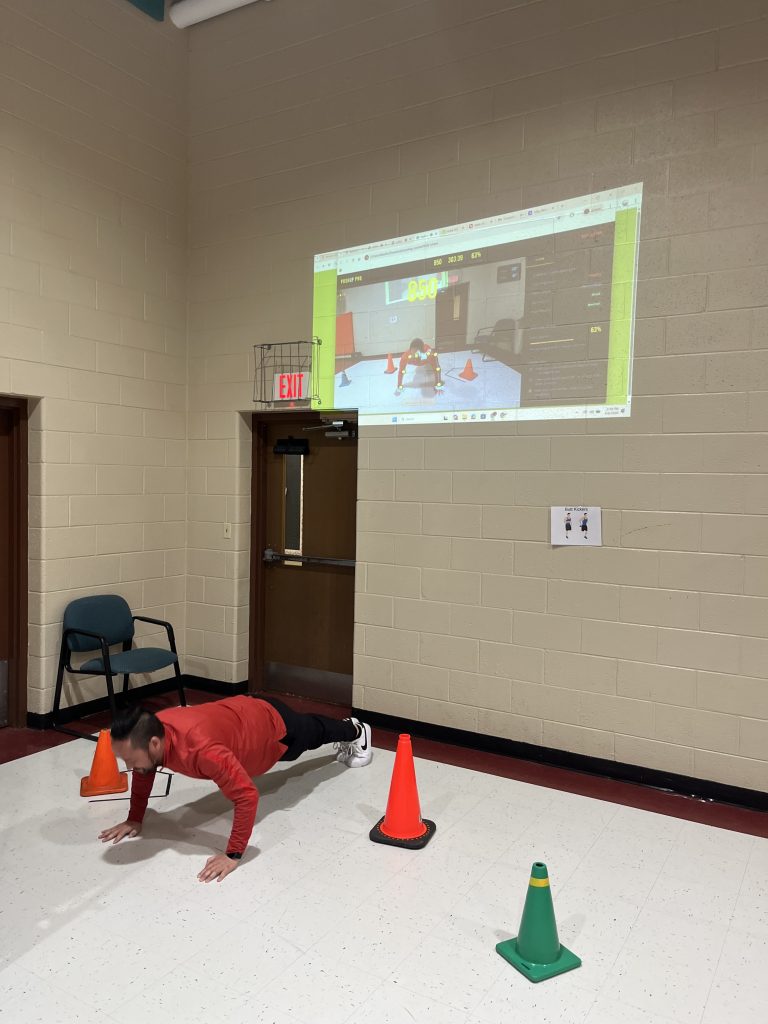
πŸ“Ί Station or projector ready β€” run it on a laptop, tablet, or projected screen for individual, partner, or small-group feedback.

How to Use It

  1. Open the tool on your device and allow camera access
  2. Set your preferred delay time
  3. Position the camera so the full skill or movement is visible
  4. Have the student perform the skill in front of the camera
  5. After the delay, the student watches their movement play back on screen
  6. Use teacher cues or peer feedback to discuss technique
  7. Repeat the skill so students can make adjustments and improve
  8. Use it as a station for ongoing self-assessment during class

Launch Video Delay Tool

Opens in a new tab β€” perfect for stations, skill practice, and instant feedback.

🎯
Why Use Video Delay?
Video delay gives students immediate visual feedback after a movement. It helps them connect instruction to performance and see exactly what their body was doing.
πŸ§’
Great for Student Reflection
Students can watch their own attempt, identify one thing they did well, and choose one thing to improve on the next rep.
πŸ€
Works Across Units
Use it for kicking, dribbling, underhand tossing, overhand throwing, striking, dance, balance, tumbling, jump rope, and more.
πŸ‘©β€πŸ«
Built for PE Teachers
Simple browser-based setup means no complicated software. Just open the tool, set the delay, and start giving students a game-changing feedback experience.

⌨ Keyboard Shortcuts

SpacePause / Resume
FToggle fullscreen

Kickball Scoreboard

Kickball Scoreboard with Remote Control

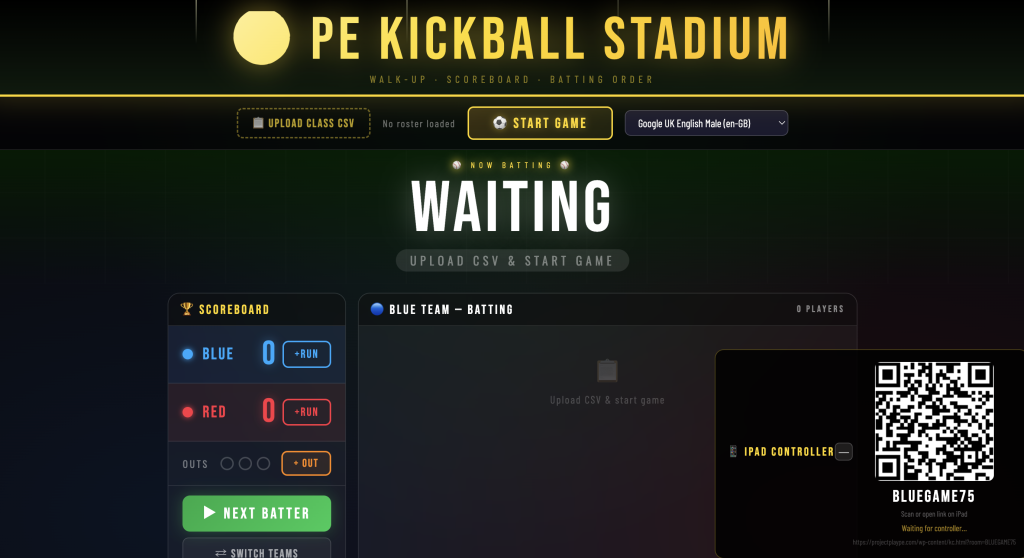
Bring a real β€œgame day” experience to your PE class with a digital kickball scoreboard you can control from anywhere.

This interactive scoreboard lets you update scores in real time using a remote deviceβ€”so you can stay active with your students instead of being stuck near a scoreboard or clipboard.

Instant scoring – Update runs immediately during gameplay Stay mobile – Control the scoreboard from your phone, tablet, or remote Better game flow – No more stopping class to track scores Student engagement – Kids LOVE seeing live scores during games

Scoreboard

Free πŸ›  Teacher Tool ● Live Now

Scoreboard πŸ†

A full-featured gym scoreboard built for PE teachers. Track scores for 2 to 4 teams, run a countdown or count-up timer, blast the hockey horn, and control everything from your keyboard β€” no mouse needed once it’s up on the projector.

⌨️ Keyboard scoring β€” press R, B, G, or Y to instantly add a point to Red, Blue, Green, or Yellow. No clicking required.
⏱ Big countdown timer β€” choose countdown or count-up, set the duration, and control it with the spacebar. Last 10 seconds flash red.
πŸ“― Hockey horn β€” press W for a deep arena-quality foghorn blast. Great for signaling the end of a period or a big score.
πŸ‘₯ 2 to 4 teams β€” pick your team count and name each team before you launch. Works for any game format.
πŸ“Ί Projector ready β€” giant numbers, high contrast colors, full-screen mode. Visible from across any gym.
πŸ”’ Period tracker β€” cycle through periods or halves right from the control bar. Reset scores and timer between rounds.

How to Use

  1. Open the tool and connect your laptop to the projector
  2. Choose how many teams and type in their names
  3. Set your timer mode (countdown, count-up, or none) and duration
  4. Click LAUNCH SCOREBOARD
  5. Press Space to start the timer when play begins
  6. Use keyboard keys to add points as teams score
  7. Press W to blast the horn at the end of a period
  8. Use the top bar to adjust the period, reset, or swap timer mode mid-game

Launch Scoreboard

Opens in a new tab β€” full screen, projector ready.

⌨ Team Keyboard Keys
R β†’ Red +1
Press R to score
B β†’ Blue +1
Press B to score
G β†’ Green +1
Press G to score
Y β†’ Yellow +1
Press Y to score

⌨ All Keyboard Shortcuts

RRed team +1 point
BBlue team +1 point
GGreen team +1 point
YYellow team +1 point
SpaceStart / Pause timer
WBlast the horn
↑ ↓Add / subtract 1 min
FToggle fullscreen

PACER Test

Free πŸ›  Teacher Tool ● Live Now

PACER Test πŸƒ

Run the FitnessGram Multi-Stage Aerobic Capacity Test straight from your browser β€” no CD player required. Deep gym-filling beeps, an animated runner on screen, built-in student tracking, and a one-click CSV export when it’s done.

πŸ”Š Deep gym beeps β€” low, chest-filling tones that carry across any gym without piercing ears. Sounds like the real thing.
πŸƒ Animated runner β€” a visual pacer bounces back and forth on screen so students always know which direction to run.
πŸ”’ Student score tracking β€” tap a student number the moment they stop. Their level and laps are recorded automatically.
πŸ“Š CSV export β€” download a spreadsheet of every student’s results with one click when the test is done.
πŸ“ 20m and 15m modes β€” standard gym distance or the shorter version for younger kids or smaller spaces.
πŸ“Ί Projector ready β€” high-contrast mode for easy visibility across a full gym. Runs in any modern browser.

How to Run the Test

  1. Open the tool on your laptop and connect to the projector
  2. Choose 20m (standard) or 15m (smaller gym)
  3. Select your starting level and audio preference
  4. Have students line up at the START line
  5. Press START TEST β€” a 5-second countdown begins
  6. Students run to the far line before each beep
  7. Tap a student’s number on the grid the moment they stop
  8. When all students are done, click Export Results for a CSV

Launch PACER Test

Opens in a new tab β€” full screen, projector ready.

πŸ“‹
What is the PACER?
The Progressive Aerobic Cardiovascular Endurance Run measures aerobic capacity. Students run back and forth between two lines, keeping pace with a beep that gets faster each level.
πŸ“ˆ
21 Levels
Starts at 8.0 km/h (Level 1) and climbs to 18.5 km/h (Level 21). Each level increases speed and requires more laps β€” a true progressive challenge.
🎯
FitnessGram Standard
Follows official FitnessGram timing and lap counts for both 20m and 15m distances. Scores are directly comparable to the published Healthy Fitness Zone tables.
πŸ—£
Voice Announce Option
Enable the optional level announcer and your browser will call out each new level automatically β€” no need to watch the screen.

⌨ Keyboard Shortcuts

SpacePause / Resume
FToggle fullscreen

Student Picker

Free πŸ›  Teacher Tool ● Live Now

Student Picker 🍭

No repeats, no favourites, no drama. Pick a random student number from a digital jar β€” just like popsicle sticks, but way more exciting. The whole class watches the number spin and land. Every student gets a turn before anyone is picked twice.

🎯 Fair by design β€” numbers stay out of the jar until everyone has been picked once. Then the jar refills automatically.
πŸ“‹ Last picks sidebar β€” see every recent pick in order so the class can follow along.
πŸŽ‰ Big moment every time β€” spinning animation, confetti, sound, and a giant number reveal keeps energy high.
πŸ“Ί Projector ready β€” runs full screen in any browser. No install, no app, no account needed.
⚑ Set class size 1–60 β€” quick-tap presets for common class sizes or dial in any number.

How to Use

  1. Open the tool on your laptop or tablet
  2. Set your class size using the +/βˆ’ buttons or quick presets
  3. Connect to your projector so the class can see
  4. Press PICK A STUDENT or hit Spacebar
  5. Watch the jar spin and reveal a number!
  6. Call out that student number β€” they’re up
  7. Keep picking β€” already-chosen numbers stay crossed off
  8. When everyone’s been picked, refill the jar and go again

Launch Student Picker

Opens in a new tab β€” full screen, projector ready.

⌨ Keyboard Shortcuts

SpacePick a student
EnterPick a student
RRefill the jar
FToggle fullscreen
EscBack to setup

Space Dodgers Teacher Guide

Free PDF

Space Dodgers Teacher Guide

A print-ready one-pager covering everything you need to run Space Dodgers in your gym. Hand it out to PE staff, share with your principal, or keep it on your desk as a quick reference.

What’s Included

  • πŸ“‹ Game overview and learning goals
  • 🀾 Full 8-step throwing cue sequence
  • πŸƒ Relay line setup diagram
  • πŸŽ’ Equipment list (required + optional)
  • πŸ’‘ Pro tips: UV lights, wireless HDMI, ball choice
  • ⚑ Quick-start guide β€” under 5 minutes setup
  • ⌨ Keyboard reference card for all 6 targets

πŸ“₯ Download the Guide

Free for all registered members. Sign up takes 30 seconds.

Free for registered members β€” sign up takes 30 seconds.

Sign Up Free to Download See Plans