Overview
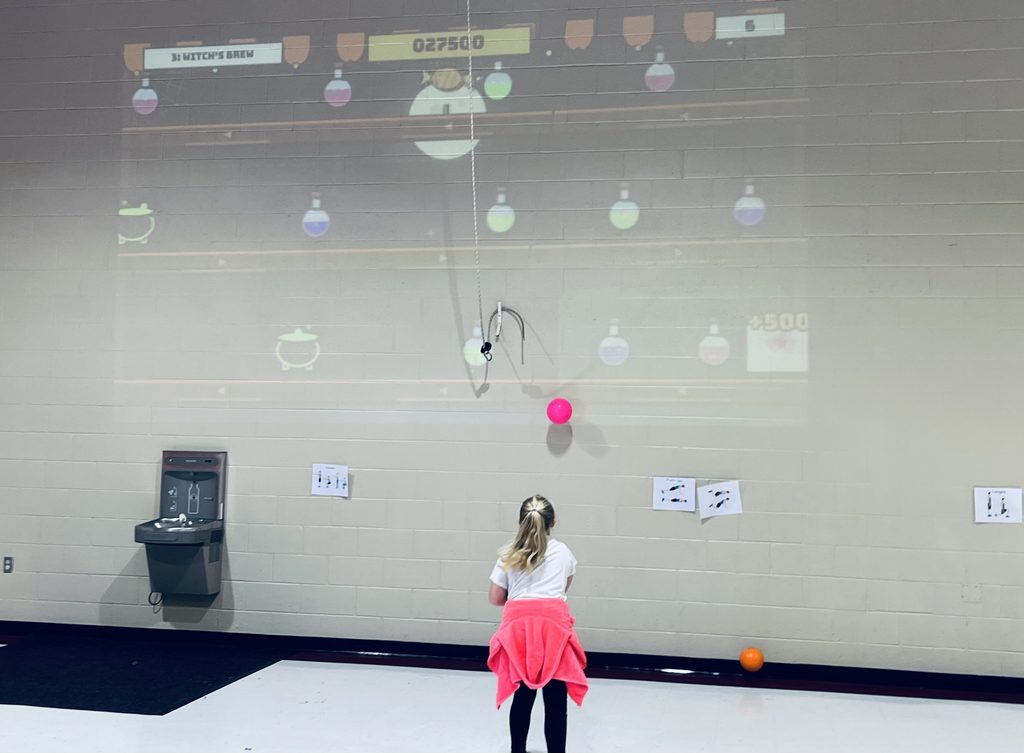
Haunted Midway 5000 is a Halloween shooting-gallery game that students play by throwing dodgeballs
at a projected wall. Ghosts, bats, pumpkins and spiders ride three conveyor belts across the screen, and
a webcam watches the wall to see where each ball lands.
The wall is split into hit zones that line up with the belts. A target scores when the ball lands in its zone
while the target is passing through, so timing matters as much as aim. A game is three 40-second
rounds, each in a different spooky booth, followed by a team results screen.
It runs in a web browser as a single file, needs no install or account, and works with a standard projector
and webcam. It is built for PE station rotation, with an automatic restart for the next group, and works
just as well at a Halloween party at home.
What you need
Item Notes
Computer Any laptop or desktop that runs Chrome or Edge.
Projector Brighter is better; a gym with the lights on needs
a strong projector. 16:9 works best.
Webcam A USB webcam or built-in camera that can see
the whole projected picture.
Wall A smooth, light-colored painted wall. Don’t use a
fabric projector screen, because balls will damage
it.
Balls Soft foam dodgeballs or playground balls. Have 6
to 10 so throwers aren’t waiting.
The camera must see the whole projected picture and as little of the students as possible. Most
detection problems come from camera placement, so take a minute to get it right.
- Project onto the wall. Aim the projector so the picture fills as much of the wall as you can, with
the edges straight. - Place the camera beside or just above the projector. Point it at the wall so the full picture fits in
its view with a little margin. Mount it higher than students’ heads so throwers don’t block it. - Mark a throwing line. Put it behind the camera, about 15 to 25 feet from the wall, depending
on age. Throwers should stay behind the camera so their bodies aren’t in its view. - Mark a retrieval rule. Students walking in front of the wall can set off false hits. Collect balls
between rounds or have one designated retriever. - Check the lighting. Room lights can stay on. Avoid sunlight moving across the wall, and turn off
flickering lights pointed at it.
First launch and calibration
Calibrate once per setup. The game remembers your corners, so you only redo this if the camera or
projector moves. - Open haunted-midway-5000.html in Chrome or Edge and press O for fullscreen.
- Click Start camera and sound, then allow camera access when the browser asks.
- Press K to open calibration. The wall shows four glowing pink corners, and your screen shows
the camera’s view. - Drag the four handles (TL, TR, BR, BL) onto the four pink corners as they appear in the camera
view. - Click Save corners. The start screen returns with the big jack-o’-lantern.
If the camera fails or you have no camera, the game still works with the keyboard and mouse (see
Controls).
How to play
Throw at the jack-o’-lantern in the center of the start screen to begin. Each round opens with a 3-2-1
countdown, then students have 40 seconds to score as many points as they can as a team.
- Three belts. The top belt is fast and moves left, the middle belt moves right, and the bottom
belt is slow and moves left. Arrows on each rail show the direction. Belts speed up each round. - Hit zones. The wall is divided into zones (9 or 18, see Settings). A target scores only if the ball
lands in its zone while it is inside that zone. - Perfect ×2. A small orange mark under the middle of each zone shows the sweet spot. Hitting a
target while it is over that mark doubles its points. - Pop-up targets. The 500-point targets rise and duck behind the rail. They can only be hit while
they are up. - Golden candy. Every 8 to 13 seconds, a golden candy zips across one belt. Hitting it is worth
2,000 points and starts a 6-second Sugar Rush on that belt, with double points and extra targets. - Miss feedback. A miss shows Too early, Too late, or Wait for it so students can adjust their
timing.
After round 3, the results screen shows the team score, each round’s score, throws, hits, accuracy,
perfects and candies. After 15 seconds it returns to the start screen for the next group. A new high score
is saved on that computer.
Targets and points
Every booth uses the same point values, so students can compare scores across rounds.
Round 100 points 250 points 500 points (pops
up)
2,000 points
- Graveyard Shift Tombstone Bat Ghost Golden candy
- Pumpkin Patch Pumpkin Black cat Jack-o’-lantern Golden candy
- Witch’s Brew Potion bottle Cauldron Spider Golden candy
Perfect and Sugar Rush bonuses stack. A perfect hit on a 500-point ghost during a Sugar Rush scores
2,000.
Settings
Both settings appear in the bottom-left corner of the start and results screens, and the game
remembers them.
Zones: 9 or 18
Click the Zones button or press J to switch.
- 9 zones (3 across × 3 belts) is more forgiving. Zones are wide and often hold more than one
target. Best for younger students or a first try. - 18 zones (6 across × 3 belts) is the hard mode. Each zone is half as wide, so students must aim
at a specific target and time it closely. Calibrate carefully before using it.
Sensitivity: 1 to 10
Use the slider or the − and + buttons. During a game, press [ to lower it and ] to raise it; the new level
appears on screen. The default is 6. - Lower it if the game scores hits nobody threw.
- Raise it if real throws are missed, especially soft throws, far throws or small balls.
A quick tuning routine
- On the start screen, throw at any zone except the jack-o’-lantern. Each detected throw leaves a
gray splat without starting the game. - Throw a few balls at different zones, including the corners.
- Raise the sensitivity until every throw splats, and lower it if splats appear when nothing was
thrown. - Hit the jack-o’-lantern to start.
For finer control, press I to open the debug panel. It shows the live camera view with each zone’s
reading (red means over the threshold) and four advanced sliders. Moving the main sensitivity dial
resets the two main advanced values.
Using it in PE class
One full game takes about 2.5 minutes plus a 15-second results screen, which fits neatly into a station
rotation.
Running the station
- Groups of 3 to 6 students work well. Students take turns at the throwing line or throw at the
same time as a team. - The game restarts on its own after the results screen. The next group starts it by hitting the jack-
o’-lantern, so the station runs without you. - Use the results screen for quick assessment. Have students record throws, hits and accuracy on
a card and try to beat their group’s accuracy next time.
Teaching cues for overhand throwing - Side to the target, then step with the opposite foot.
- Arm back, elbow up, and follow through toward the wall.
- Watch the belt and lead the target. Throw a moment before it reaches the zone.
Differentiation - Move the throwing line closer or farther away.
- Use 9 zones for beginners and 18 zones for a challenge.
- Allow underhand throws for younger students.
- Give each student a target type to aim for, such as only bats or only 500-point targets.
Safety - Use soft balls only, and keep everyone behind the throwing line while the round is running.
- Retrieve balls only between rounds or with a designated retriever.
- Keep cords and the projector cart out of walkways, and make sure no one throws at the
projector or camera.
Controls
Key Action
Space Start a game from the start screen, or skip the
results screen
P Pause or resume
J Switch between 9 and 18 zones (start and results
screens)
[ and ] Lower or raise sensitivity
K Calibrate camera corners
I Show or hide the debug panel and camera view
L Show or hide the zone grid lines
O Fullscreen
M Mute
Esc Leave calibration without saving
Playing without a camera. Click anywhere on the screen to throw at that zone, or use the keys below.
Each row of keys matches a belt.
Belt 9 zones 18 zones
Top Q W E Q W E R T Y
Middle A S D A S D F G H
Bottom Z X C Z X C V B N
In 9-zone mode, the number pad also works (7 8 9 / 4 5 6 / 1 2 3).
Troubleshooting
Problem Try this
Throws are missed Raise sensitivity 1 or 2 levels. Make sure the
camera sees the whole picture and the room isn’t
too dark.
Hits happen when nobody threw Lower sensitivity. Keep students out of the
camera’s view and away from the wall during
rounds.
Hits land in the wrong zone Press K and recalibrate. Check that the camera or
projector hasn’t been bumped.
No sound Click Start camera and sound again, press M to
unmute, and check the computer’s volume.
Plain fonts instead of carnival lettering The computer is offline. The game still works
The game starts by itself Someone walked past the jack-o’-lantern, or
sensitivity is too high. Lower it a level.
No camera picture Allow camera access in the browser’s address
bar, close other apps using the camera, then
reload.
normally.
Picture is cut off or stretched Press O for fullscreen and set the projector